
TD-BLE & Hikvision DashCam: Connection Manual: Difference between revisions
| Line 18: | Line 18: | ||
Connect the DashCam via Wi-Fi. | Connect the DashCam via Wi-Fi. | ||
[[File:Wi fi search hikvision.png|538x538px]][[File:Dash Wifi.png|537x537px]] | |||
Go to the Settings page (top right corner, the gear icon), open the Network Settings and select the Bluetooth List option.<gallery widths=" | |||
Go to the Settings page (top right corner, the gear icon), open the Network Settings and select the Bluetooth List option. | |||
[[File:Settings hikvision.png|613x613px]][[File:Hikvision settings.jpg|614x614px]]<gallery widths="300" heights="650"> | |||
File:Netowrk settings.jpg|Network Settings menu | File:Netowrk settings.jpg|Network Settings menu | ||
File:Bluetooth list.jpg|Bluetooth List menu | File:Bluetooth list.jpg|Bluetooth List menu | ||
Revision as of 15:51, 4 December 2025
Hikvision DashCam connection
In this manual the UD434041B_Baseline_G40 Pro dashcam has been used as an example. The configuration of other models by Hikvision may differ. For more information, please, contact the manufacturer.
Before anything, you need to download the HikDashcam App by means of the following QR-code or by searching for it in the GooglePlay, Appstore or other.

The app requires access to the camera and location of your smartphone. Be sure to grant it.
Enable your smartphone's Wi-Fi and connect to the DashCam device after finding it among the available Wi-Fi networks. Enter the default password 'Dash12345'.
Add the device and then select the configuration via Wi-Fi option.
Pairing a TD-BLE with the DashCam
Connect the DashCam via Wi-Fi.


Go to the Settings page (top right corner, the gear icon), open the Network Settings and select the Bluetooth List option.


-
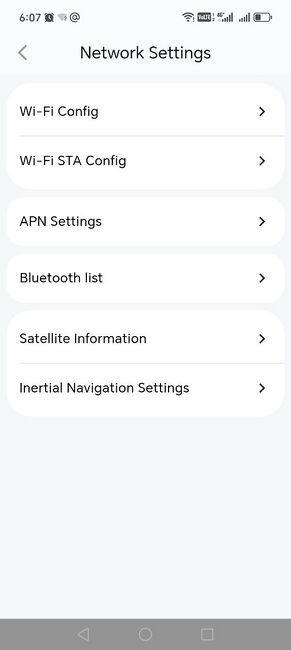
Network Settings menu
-
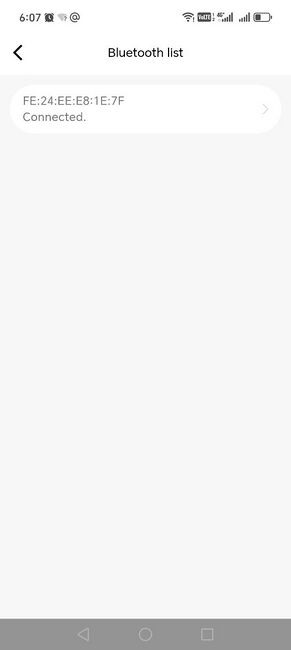
Bluetooth List menu


Select the configurable slot on the Bluetooth list. Enter the MAC address of the sensor (you can find it on the sensor's head or in our Escort Configurator app on Android (iOS doesn't permit broadcasting MAC addresses). Tap Save to apply the changes.
-

Bluetooth device's settings
-

TD-BLE's readings (7000 error code provoked on purpose)


Check if the readings are properly updated in the Height graph.
Attention! Thoug the Height graph states mm as the main measurement units, the sensor's readings from 1 to 1023 or from 1 to 4095 are abstract measurement units that can be converted into liters, gallons, %, millimeters or other units only after the tank calibration is executed and the tank calibration table is created. The table must be either saved in the sensor's memory (available in TD-BLE, up to 50 lines in the table) or on the monitoring platform (the best option as modifying it is a lot more convenient than modifying the table in the sensor's memory which cannot be done remotely).